


Why Play War Robots on a Laptop?
If you love action-packed battles and massive mechs, War Robots delivers that thrill every time. However, playing it on a laptop gives you a totally different experience. The larger display enhances your field of vision, helping you spot opponents from a distance. Plus, the controls become smoother and faster with a keyboard and mouse, letting you aim and shoot precisely.
Laptops also allow longer gaming sessions without overheating or battery drain issues common on phones. And if you’re multitasking—say, checking a guide, chatting with teammates, or running streaming software—you can easily switch between apps without interruptions.
What Is Usitility and How Does It Help?
Usitility is a trusted platform that simplifies running mobile games like War Robots on your computer. Instead of searching across multiple sources for emulators or setup files, Usitility provides direct download links, installation steps, and reliable recommendations.
It’s not just a website—it’s a helpful guide for gamers who want to bring their favorite mobile experiences to PC. The platform’s detailed instructions ensure you can set up War Robots in minutes, even if you’re new to emulators.
System Requirements for Running War Robots on a Laptop
Before you begin, check that your laptop meets these basic requirements for smooth performance:
| Component | Minimum Requirement | Recommended |
|---|---|---|
| Operating System | Windows 7 or newer | Windows 10/11 |
| Processor | Intel i3 or equivalent | Intel i5 or AMD Ryzen 5 |
| RAM | 4 GB | 8 GB or higher |
| Graphics | Intel HD 4000 | Dedicated GPU (NVIDIA/AMD) |
| Storage | 5 GB free space | SSD for faster loading |
Having the right setup ensures smoother graphics, fewer frame drops, and an overall enjoyable gaming session.
Step-by-Step Guide to Download War Robots Using Usitility
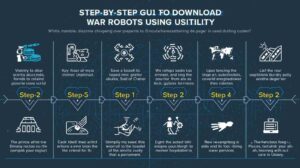
Step 1: Visit the Usitility Website
Open your web browser and go to Usitility’s official site. You’ll find a clean interface with a search bar right on the homepage.
Step 2: Search for War Robots
Type “War Robots” in the search bar. The site will take you to a dedicated page containing game information and emulator download options.
Step 3: Download an Android Emulator
Usitility usually recommends BlueStacks, LDPlayer, or NoxPlayer. Each is reliable for running War Robots smoothly. (See the comparison below 👇).
Step 4: Install the Emulator
Click “Download” next to your chosen emulator. Once the file is saved, open it and follow the installation instructions.
Step 5: Sign in With Your Google Account
After installation, launch the emulator and sign in using your Google account. This step allows access to the Play Store.
Step 6: Download War Robots
Search War Robots in the Play Store inside the emulator, then click “Install.” Once done, the game icon will appear on your emulator home screen.
Step 7: Configure Settings for Performance
Go to emulator settings → graphics → select high or ultra quality and set 60 FPS for smoother gameplay.
Step 8: Launch and Play
Open War Robots and enjoy the intense battles on a much larger screen!
Best Emulators Compared: BlueStacks vs LDPlayer vs NoxPlayer
| Feature | BlueStacks | LDPlayer | NoxPlayer |
|---|---|---|---|
| Performance | Excellent for heavy games | Smooth and lightweight | Balanced for mid-range PCs |
| Customization | High (key mapping, macros) | Medium | Easy for beginners |
| RAM Usage | Moderate to high | Low | Medium |
| Updates | Frequent | Regular | Occasional |
| Ideal For | Power gamers | Low-spec laptops | Casual players |
If you want raw performance and customization, go for BlueStacks. For lighter setups, LDPlayer works great.
Installing and Setting Up the Android Emulator
Once downloaded, open the emulator and follow the on-screen instructions. It’ll take a few minutes to configure system resources.
After installation:
-
Sign in with your Google Account.
-
Open the Google Play Store.
-
Search War Robots, and click Install.
When done, adjust the emulator dashboard’s performance settings to achieve the best balance between graphics and speed.
Optimizing Emulator Settings for the Best Performance

Smooth gameplay depends on a few adjustments:
-
Allocate more RAM and CPU cores (in emulator settings).
-
Set frame rate to 60 FPS for fluid visuals.
-
Enable “High Performance Mode.”
-
Use Game Mode if your laptop supports it.
-
Update your graphics drivers regularly.
These tweaks make a noticeable difference, especially during intense battles.
Is It Safe to Download War Robots Through Usitility?
Yes, it’s completely safe. Usitility links only to verified sources and official emulator websites, ensuring you don’t install malware or fake files. Always avoid third-party links outside the official Usitility and emulator websites.
As a precaution, keep antivirus protection active and download directly from trusted sources mentioned in Usitility’s guide.
Tips to Improve Your War Robots Gaming Experience
-
Use a gaming mouse for better targeting and movement.
-
Customize key bindings for faster reactions.
-
Close background programs to free up system resources.
-
Play in full-screen mode for a more immersive experience.
-
Experiment with different mechs to find your ideal combat style.
Common Problems and How to Fix Them
1. Emulator lagging or freezing: Lower graphics settings or allocate more RAM.
2. Game crashes on launch: Update emulator and graphics drivers.
3. Google Play login issue: Clear the cache and restart the emulator.
4. Audio delay or stutter: Disable background apps that consume CPU.
5. Slow downloads: Check your Wi-Fi connection or switch to Ethernet.
Benefits of Playing War Robots on a Bigger Screen
Playing War Robots on a laptop isn’t just about visuals. It improves your reaction time, strategy planning, and overall control. You can also stream your matches, record gameplay, and multitask easily.
Additionally, laptops offer customizable graphics settings, meaning smoother visuals and an immersive battlefield experience that mobile screens can’t match.
Final Thoughts on Downloading War Robots with Usitility
Bringing War Robots from your phone to your laptop is one of the best gaming upgrades you can make. With Usitility’s simple process, even beginners can get started quickly. From enhanced visuals to precise controls, the difference is remarkable.
If you enjoy mech battles, teamwork, and strategy, playing War Robots on a laptop through Usitility transforms your gameplay entirely. It’s smoother, safer, and far more immersive — just the way gaming should be.
(You can also check similar guides on installing other Android games for PC on sites like Usitility or related tech blogs.)
FAQs About Playing War Robots on a Laptop
1. Can I play War Robots on a laptop without an emulator?
No, you’ll need an emulator like BlueStacks or LDPlayer to run the Android version of the game on your laptop.
2. Is War Robots free to play on PC?
Yes, it’s completely free to download and play. However, in-game purchases are optional.
3. Which emulator works best for low-end laptops?
LDPlayer is the most lightweight and runs well even on systems with 4 GB of RAM.
4. Does playing on a laptop give any in-game advantage?
While gameplay mechanics are identical, better controls and visuals improve your overall performance.
5. Is it safe to download War Robots via Usitility?
Yes, Usitility only provides verified download links, ensuring safety from malware or pirated software.
